
Remote Pairing Guides & 2-Step Diagnostic Testing
Wondering if your new remote is working, or need to pair your Samsung, LG, Mi, Jio, or Fire TV remote? Follow these technician-verified instructions with illustrated diagrams.
How to Check If Your Remote Is Working: 2 Easy Steps
Before assuming a remote is defective or blaming your TV, perform these two 10-second diagnostic checks using your smartphone.
The Smartphone Camera Infrared Test
Human eyes cannot see infrared light (940nm), but your smartphone camera sensor detects it easily.
- 1Insert fresh, brand-new AAA or AA alkaline batteries into the remote. Ensure correct + and - polarity.
- 2Open the Camera app on your mobile phone (use the front selfie camera on iPhones or any camera on Android).
- 3Point the front LED diode of the remote directly into your camera lens from 2 inches away.
- 4Press the Power button or any random button repeatedly while watching your phone screen.
What You Should See:
✓ Flashing bright purple, violet, or bluish-white beam on your phone screen = The remote is transmitting 100% and working perfectly!
⚠️ Very dim / faint light = Batteries are weak and need replacement.
❌ Zero light = Check battery terminal springs or replace drained cells.
The Smartphone Bluetooth Scanner Test
Voice remotes use Bluetooth RF chips. If your TV isn't recognizing it, your mobile phone can verify if the remote is actively broadcasting Bluetooth signals.
- 1Turn ON Bluetooth on your mobile phone and go to your Bluetooth Settings screen.
- 2Put your remote into pairing broadcast mode by pressing and holding its pairing keys (e.g. Return + Play/Pause on Samsung, Mi + Circle on Xiaomi, Mute + OK on Jio).
- 3Tap Scan for New Devices on your phone.
What You Should See:
✓ If your phone displays device names like "Smart Control", "Mi Remote", "Voice Remote", or a Bluetooth MAC code, your remote's Bluetooth transceiver is 100% functional and transmitting! (Do not connect it to the phone; proceed to pair with your TV).
Samsung Smart TV Voice Remote Pairing Guide
Compatible with BN59-01330A, BN59-01312A, BN59-01329A, Crystal 4K, Tizen OS, QLED, UHD Series
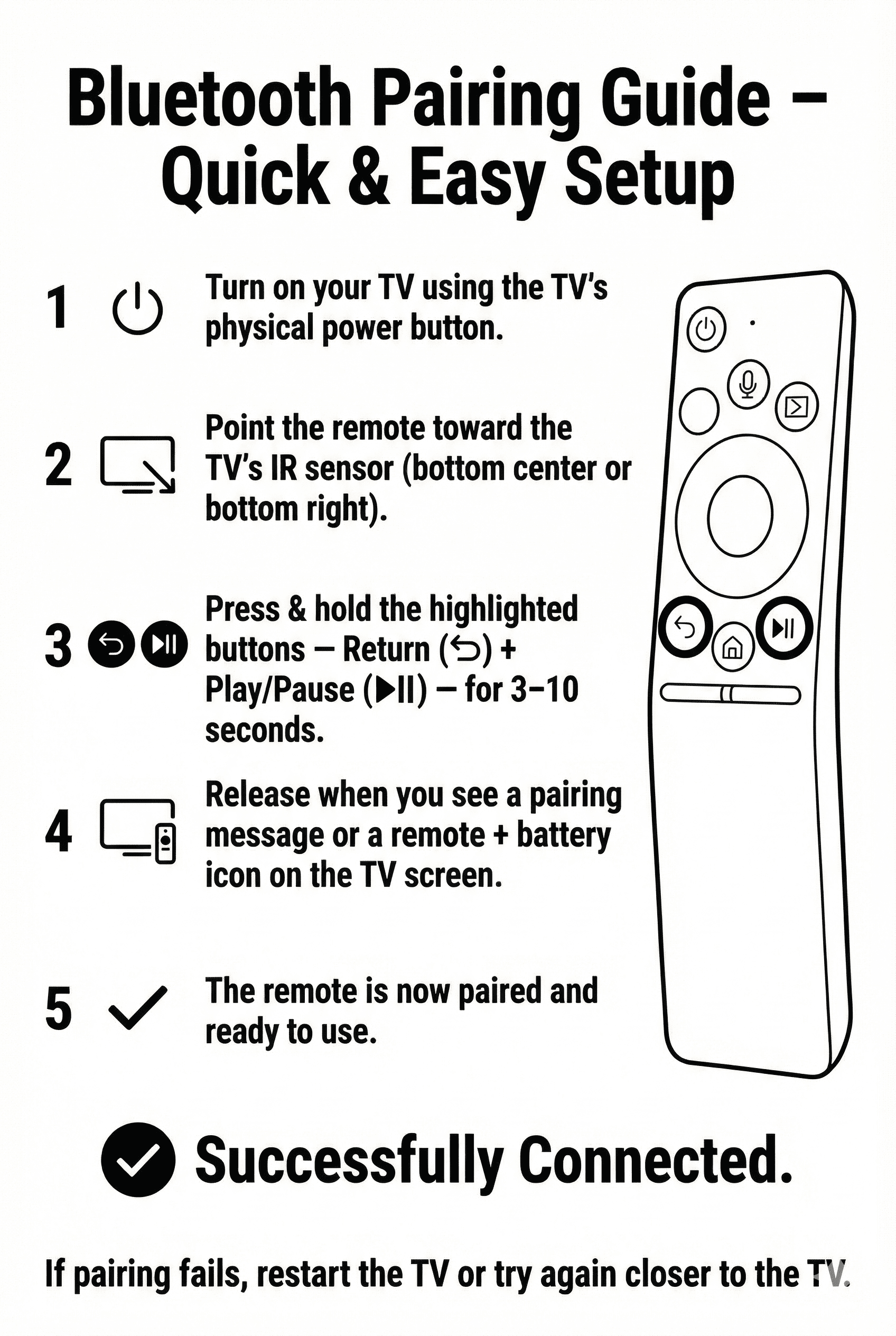
Figure 1: Samsung Smart Remote Return + Play/Pause Button Positions
If pairing fails: Remove batteries, unplug your TV power cord for 60 seconds (power cycle reset), plug back in, and repeat the Return + Play/Pause hold while standing 1 foot away from the TV.
LG Magic Remote Pairing & Cursor Reset Guide
Compatible with MR20GA, MR21GA, MR22GN, AN-MR18BA, OLED, NanoCell, webOS 4.0 / 5.0 / 6.0
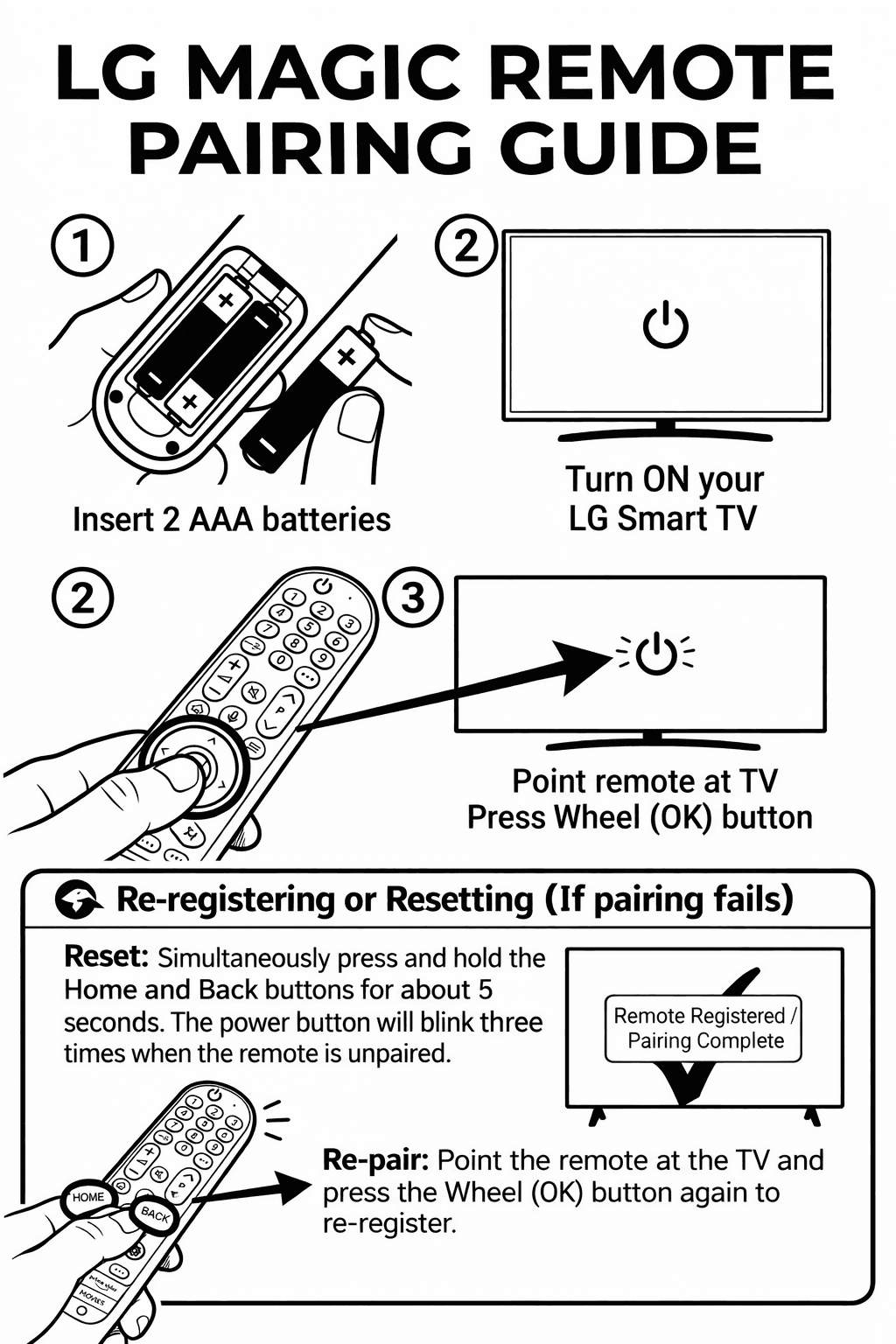
Figure 2: LG Magic Remote Scroll Wheel OK & Reset Buttons
Initial Pairing Setup:
- 1Insert 2 fresh AAA alkaline batteries into the LG Magic Remote.
- 2Turn on your LG Smart TV and wait 10 seconds for webOS to boot.
- 3Point the remote at the TV and press down firmly on the Scroll Wheel (OK) button.
- 4When registered, a message appears: "Magic Remote has been successfully registered." The pointer cursor will now appear!
How to Unpair / Reset (If Pointer Does Not Appear):
1. Press and hold both the HOME and BACK buttons simultaneously for 5 seconds.
2. The remote's Power button LED will flash 3 times, confirming the remote is unpaired.
3. Point at the TV again and press the Wheel (OK) button to re-register fresh.
Tata Play (Tata Sky) Universal Remote TV Setup Guide
Control both your TV and Tata Play Set-Top Box with a single remote (Power, Volume & Source).
Why Pair Your Tata Play Remote with Your TV?
Tata Play remotes feature 4 programmable Universal buttons at the top: TV Power, Vol +, Vol -, and TV/AV Source. Once programmed, you will never need your original TV remote again!
Keep remotes 2 cm apart facing each other:
✓ 100% Guaranteed Compatibility:
Works with all Samsung, LG, Sony, Mi, TCL, Vu, Sansui, and OnePlus TVs.
Airtel Digital TV & Xstream Remote TV Setup Guide
Universal key learning for Airtel HD and Xstream Box remotes to operate TV Power and Volume.
Control TV & Airtel DTH with 1 Remote
Your Airtel DTH remote has a dedicated TV Control Section enclosed within a top border (TV Power, Vol +, Vol -, AV).
Universal AC Remote Setup & Brand Code Index
Simple 5-second auto-search or manual code entry for Voltas, Daikin, LG, Lloyd, Blue Star, Hitachi, Carrier & more.
Setup Without Entering Any Codes
- Turn ON your Air Conditioner manually via the physical wall switch.
- Point the Universal AC Remote directly at the indoor AC unit.
- Press and hold the SET button for 5 to 6 seconds until the 3-digit code on the bottom right of the LCD starts flashing and counting upwards (001, 002, 003...).
- Wait for Beep: The exact moment your AC unit emits a distinct "BEEP" sound or powers ON/OFF, immediately press the ENTER / OK button to lock the code.
- Test the Power, Temperature, and Fan Speed buttons. If some buttons do not respond, repeat auto-search for the next matching sub-code.
Press SET once, use TEMP + / - to select code, then press OK:
Mi / Xiaomi TV & Box Voice Remote Pairing Guide
Compatible with Mi TV 4A, 4X, 5X, Horizon, Mi TV Stick, Mi Box 4K (Bluetooth Voice models)
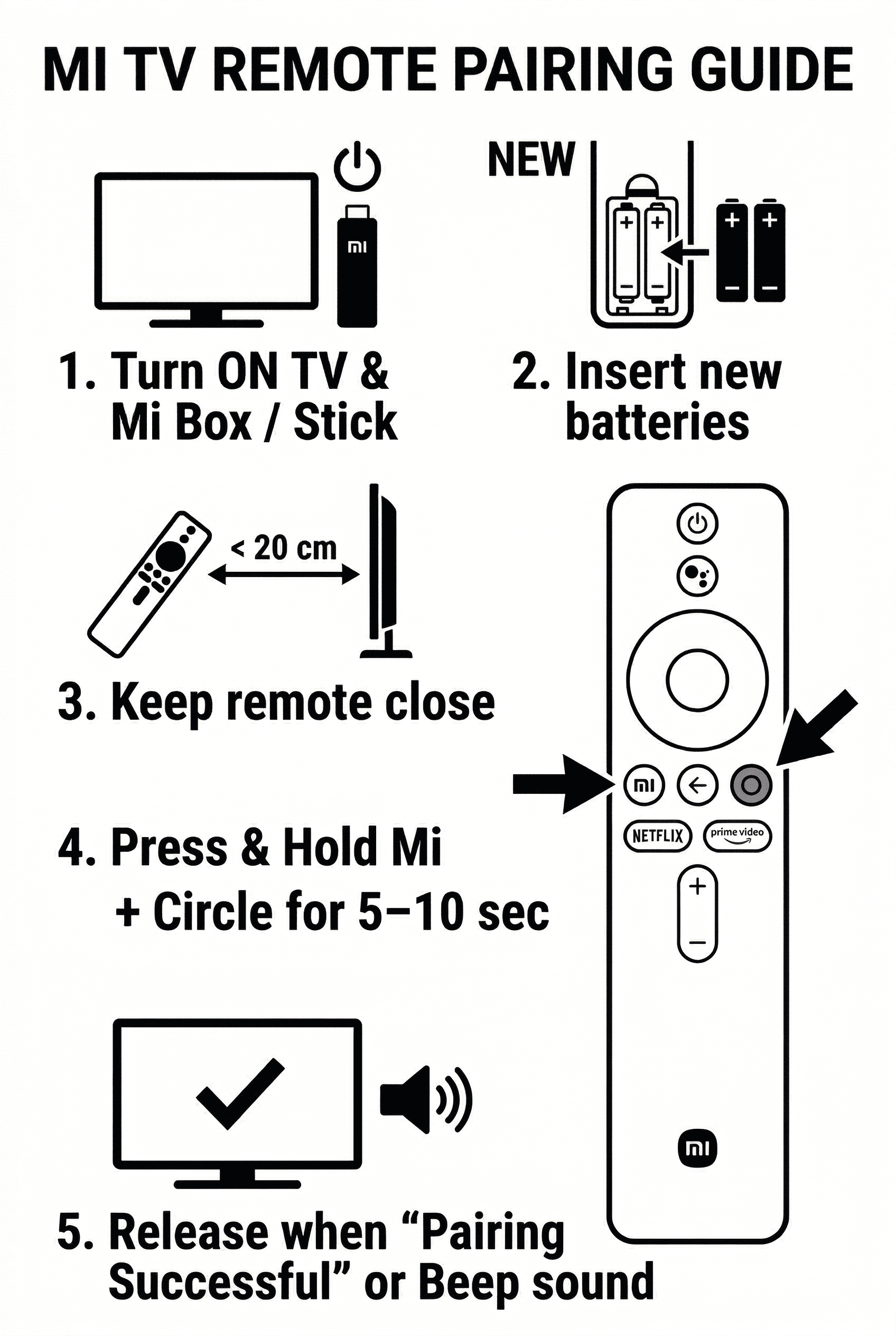
Figure 3: Mi TV Remote Mi (PatchWall) and Circle (Home/App) Pairing Buttons
Amazon Fire TV Stick Voice Remote Pairing Guide
Compatible with Fire TV Stick Lite, 4K, 4K Max, Fire TV Cube, Model L5B83H, L5B83G
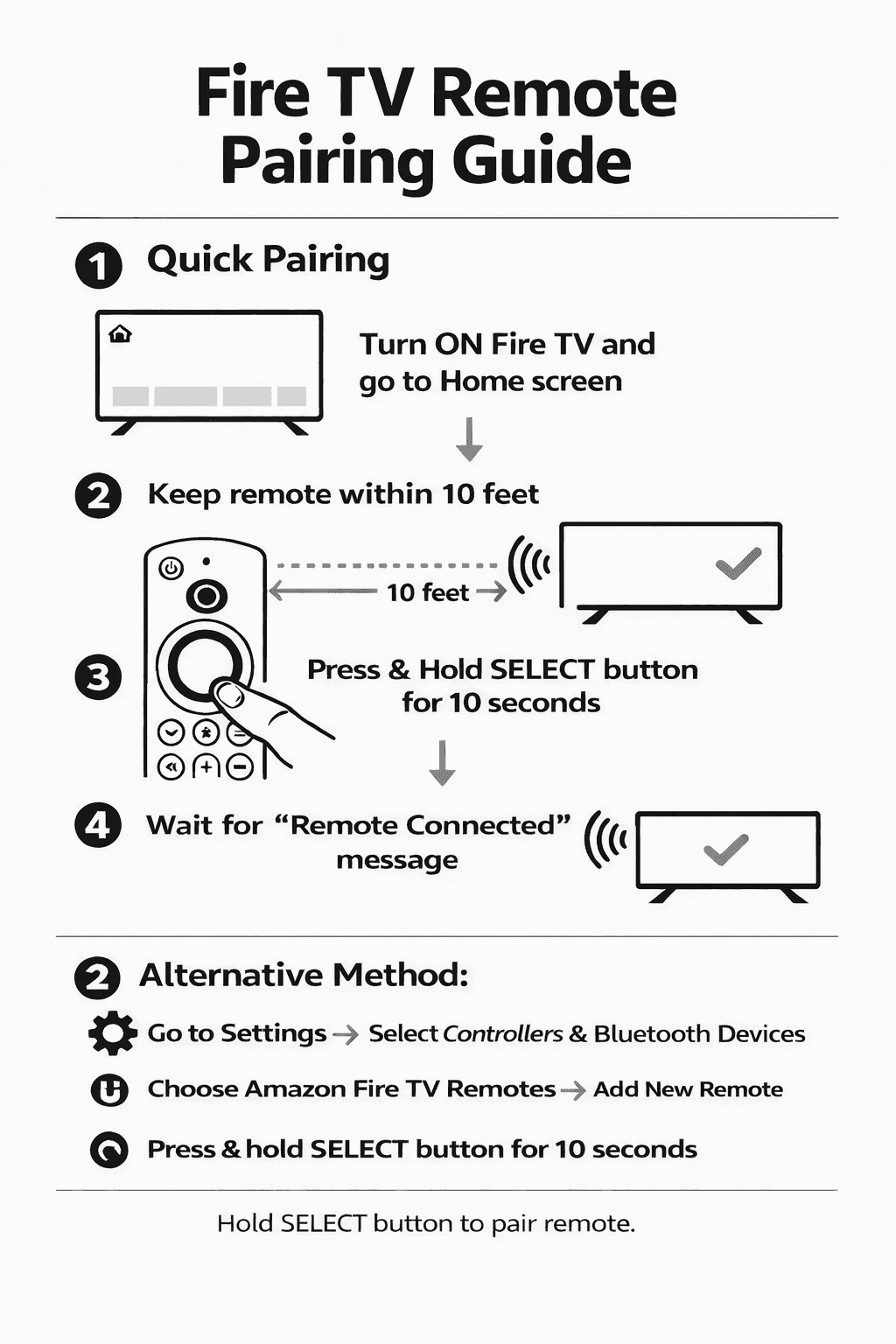
Figure 4: Fire TV Remote SELECT (Center) & HOME Button Setup
Alternative Pairing (via Fire TV App on phone):
Use the free "Amazon Fire TV" mobile app as a temporary remote. Go to Settings → Controllers & Bluetooth Devices → Amazon Fire TV Remotes → Add New Remote, then hold the HOME button on your new remote for 10 seconds.
Jio Set-Top Box & JioFiber Voice Remote Pairing Guide
Compatible with Jio STB, Jio Set Top Box 4K, JioFiber Voice Controllers
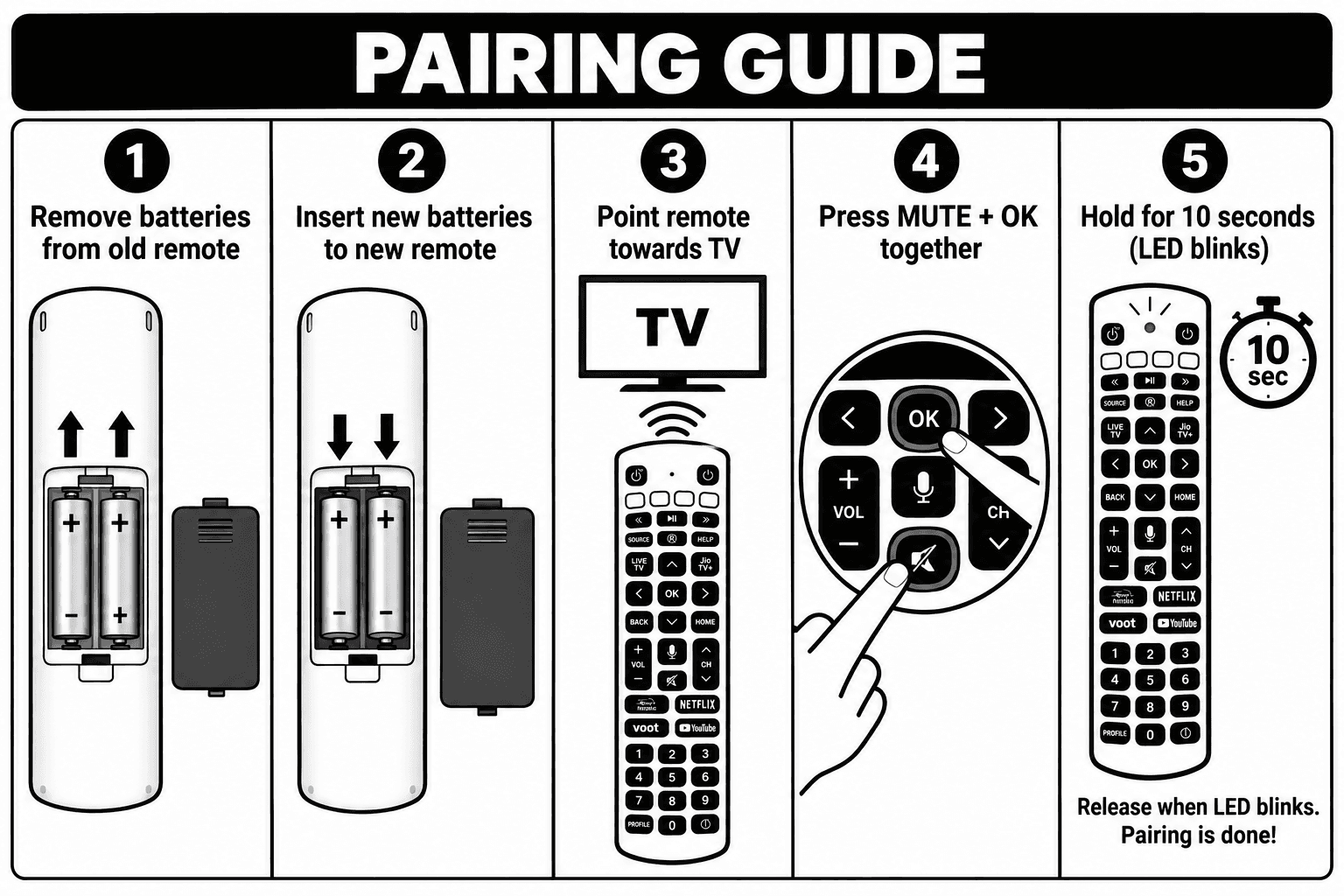
Figure 5: Jio STB Remote MUTE + OK 10-Second Pairing Procedure
Still Facing Compatibility or Pairing Issues?
Our diagnostic team is available via Support Tickets and Email. Send a quick photo of your TV sticker or old remote for verified technician assistance.